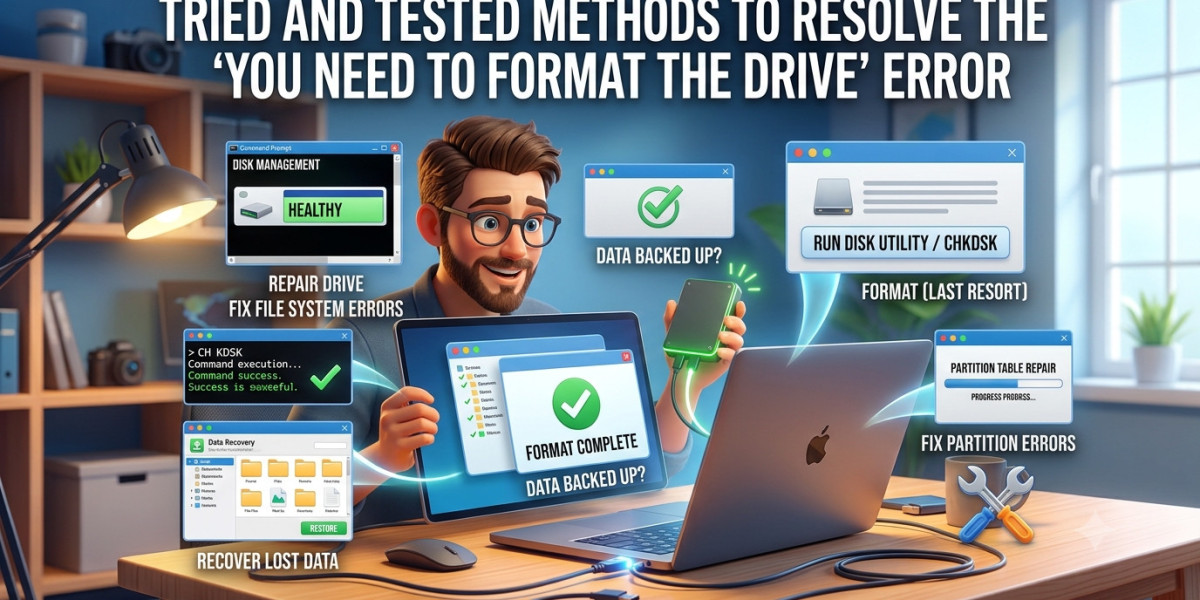

Using a storage device does not mean that you are free of issues. Whether you are using SSDs or USB drives, there are certain errors that you can encounter while using the device, and one of the most common errors that you might see is the error message ‘You need to format the drive’. The error can also appear with a different message, such as ‘The drive needs to be formatted’.
Well, luckily, there are a few solutions that allow people to get this issue fixed easily. Whether you are using a laptop or a computer, the methods that we are giving here will easily allow you to fix the issue. So, if you want to know how to fix drive needs to be formatted error, this is the ultimate guide you need to see.
Technique 1: Verify Hard Drive Connectivity
If you weren’t able to recover your data because of a problem with the disk connection, then trying this fix first is a really good idea. A lot of the solutions here can also help with a corrupted external hard drive, but honestly, none of them will help if the real root cause is connectivity.
For internal hard drives, just make sure your cable (usually SATA or SAS) is firmly attached to both your motherboard and the hard drive. For external hard drives, connect the drive to a working USB port that can actually deliver enough power to get it running. Also, take a second and check that both ports are free from debris, like lint and dust.
Technique 2: Check If the Disk Is Recognized by the System
To let your operating system access the drive, it needs a compatible file system plus the correct storage capacity it can read. You can see whether your computer is detecting the drive by opening Disk Management and checking there.
If the drive shows up and displays the right storage amount, then you should still be able to recover data from it and repair it, too, using one of the solutions. But if the disk appears nowhere, or it shows an incorrect capacity, you’ll likely need to consult a data recovery service so they can help properly.
Technique 3: Try a Different PC to Check Your Drive
Sometimes the problem is more about your computer than the drive itself. For example, if you see the message “You need to format the disk in drive D: before using it” as a USB error, try connecting the same drive to another computer and check if the message keeps coming.
The same idea applies when “You need to format the disk in the drive before you can use it” shows up with an SD card, or with external HDDs and SSDs. In those cases, it might be something up with the USB ports on your current computer. Try to use a PC that has a different OS to see whether the issue is not happening because of an incompatible file system.
If you are still looking for other solutions, then you can also look up more methods on the website Notchox.